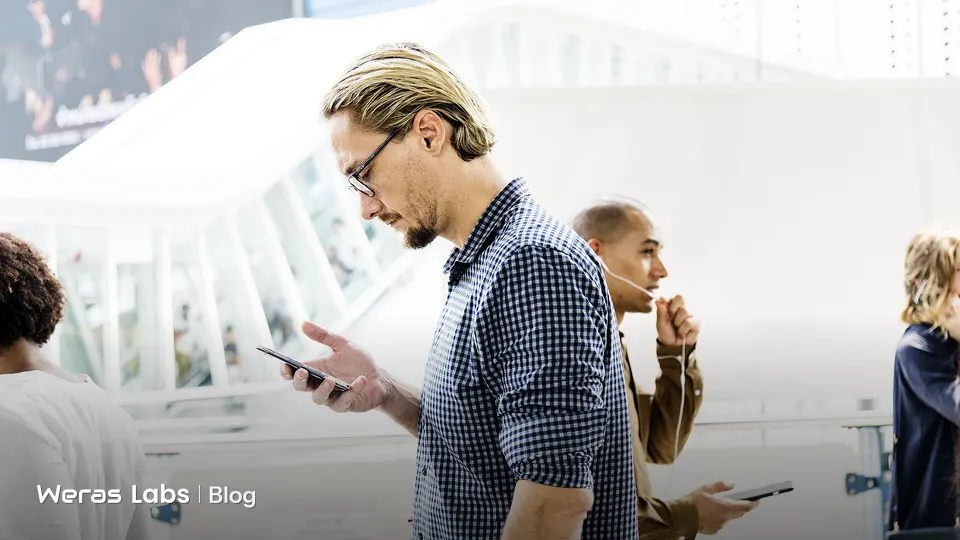
The most practical answer to "how do I avoid distractions?" is to cut interruptions off at the source: turn off most notifications, allow only genuinely urgent people and apps through, get your phone out of sight during focus hours, and check email and messages at set times. Changing your environment, so that distractions are simply out of reach, works far better over time than relying on willpower.
Where distractions come from
Sorting interruptions into three groups makes it easier to pick the right fix for each:
- External digital interruptions: Notifications, messages, email alerts, calendar reminders.
- External physical interruptions: Colleagues stopping by your desk with questions, noise and chores at home.
- Internal interruptions: Reaching for your phone when nobody's bothering you, opening email "just to check," jumping to a task the moment it pops into your head.
Internal interruptions tend to get overlooked, but they're fed by external ones: someone who gets constant notifications builds a habit of checking even when nothing has arrived. That's why cutting notifications also cuts internal interruptions.
How to avoid distractions: the notification audit
The first step is seeing which apps are sending you notifications. Simply count the notifications you get over one workday, or check your phone's screen time and notification reports. Then put every app into one of three groups:
| Group | What happens | Examples |
|---|---|---|
| Immediate | Sound and on-screen alerts on | Phone calls, close family, a genuinely urgent work channel |
| Silent | Collects in the notification center, no sound or pop-up | Email, team chat, calendar |
| Off | No notifications at all | Social media, news, shopping, games |
After this audit, most people find that the majority of their apps belong in the "off" group. Notifications from social media and news apps almost never move your work forward.
Review notification previews too. Showing message content on the lock screen invites you to read and reply right away, and it lets the people around you see your work conversations. Showing previews only when the phone is unlocked is a better default for both focus and privacy.
On your phone
- iPhone: Under Settings > Focus, create a focus mode such as "Work" so that only the people and apps you allow can send notifications. Focus modes can be set to switch on automatically by time or location.
- Android: Under Do Not Disturb or Digital Wellbeing in Settings, you can define similar rules and set exceptions for specific people and apps. Menu names vary by manufacturer.
- Simplify your home screen. Moving distracting apps off the home screen and into a folder makes them harder to open on reflex.
On your computer
- Windows 11: Under Settings > System > Notifications, you can turn on Do Not Disturb and switch off notifications app by app. The focus session feature in the Clock app also lets you start timed focus blocks.
- macOS: Under System Settings > Focus, you can create focus modes and sync them with your iPhone.
- Browser: In Chrome, go to Settings > Privacy and security > Site settings > Notifications to see which sites have notification permission and remove the ones you don't need. You can also block sites from asking to send notifications at all.
Rules for messaging and email
Work communication tools are the most frequent source of interruptions, but you can't switch them off entirely. The fix is batching them into set times:
- Email: Set two to four processing times a day. Keep your email client closed outside those times.
- Team chat: Mute most channels; keep notifications on only for direct messages and messages that mention you. Update your status during focus blocks.
- An emergency channel: Agree with your team how to reach you when something is genuinely urgent, such as a phone call. That makes it safe to mute everything else.
Arrange your physical environment
- Put your phone in another room. Even silenced and face down, a phone on the desk pulls at your attention. Getting it out of sight during focus blocks is one of the most effective measures there is.
- One screen, one task. Keep only the windows you need open for focused work. Virtual desktops are an easy way to move communication tools into a separate space.
- A visual signal. In an open office, wearing headphones or a simple signal agreed with your team shows that you're focusing right now.
- Noise. Noise-canceling headphones or a steady background sound mask changing ambient noise and make it easier to concentrate.
Dealing with internal interruptions
- Keep a notepad handy. When a task comes to mind during focus time, write it on a piece of paper next to you instead of doing it immediately. Look at it during your break.
- Notice the urge to check. When you catch yourself reaching for your phone, pause for a second and ask why. That small pause turns an automatic behavior into a conscious choice.
- Recognize the hard moment. The urge to check usually shows up right when the work gets difficult. Noticing that moment and pushing on for a few more minutes strengthens your focus muscle.
- Schedule breaks. Regular breaks reduce the need for "quick escapes."
- Add friction. Remove distracting sites from your bookmarks and pinned tabs, and log out of the apps. Having to sign in again every time noticeably reduces the urge to open them on reflex. If needed, you can also use a browser extension that blocks certain sites during focus hours.
Example: a one-day notification plan
- 8:30 - 9:00: Phone in normal mode; plan the day.
- 9:00 - 11:00: Work focus mode on. Only calls from your manager and family get through. Email and chat closed.
- 11:00 - 11:30: Process email and messages.
- 11:30 - 17:00: Meetings and collaboration; chat open, but only direct messages trigger notifications.
- After 17:30: Notifications from work apps off.
Weekly checklist
- Social media and news notifications are off.
- A focus mode is set up on my phone and computer.
- I have set times for processing email.
- Team chat channels are muted; direct messages are on.
- My phone is out of sight during focus blocks.
- I've removed unnecessary site notification permissions in my browser.
For planning longer focus blocks, check out the deep work and Pomodoro articles on our blog.
Conclusion
The answer to "how do I avoid distractions?" lies more in designing your environment than in willpower. Sort your notifications into three groups, set up focus modes, batch your communication tools into set times, and move your phone away while you focus. Each of these changes is small, but together they significantly increase the uninterrupted hours you can work each day.
From Weras Labs
We can help you with this
We turn what you just read into working software for your business. You talk to the person writing the code; price and timeline are clear from day one.
Frequently asked questions
Does it make sense to turn off phone notifications completely?
Rather than turning them all off, it's more practical to sort them into three groups: immediate alerts for urgent contacts and calls, silent notifications for work apps, and none at all for apps like social media and news. Focus modes can apply this split automatically by time of day.
What is a focus mode?
A focus mode is a phone and computer feature that, at certain times or in certain situations, lets only the people and apps you allow send you notifications. It's called Focus on iPhone and macOS, and Do Not Disturb or similar on Android and Windows.
How do I turn off site notifications in Chrome?
Go to Settings > Privacy and security > Site settings > Notifications. From there you can remove sites you've allowed, or block sites from asking to send notifications altogether.
How do I stop checking my phone while I work?
The most effective method is putting your phone in another room or a drawer during focus blocks. Turning off notifications from distracting apps and removing them from your home screen also reduces reflexive checking.
About the author

Habip Dayan
Founder of Weras Labs
Habip Dayan is the founder of Weras Labs, a company that builds software products for professionals and teams. He has been building software since 2018 and writes about AI, cloud architecture and product design.
Comments
Be respectful; no ads or personal data. Comments that break the rules are removed.